> ## Documentation Index
> Fetch the complete documentation index at: https://miliracle.online/llms.txt
> Use this file to discover all available pages before exploring further.
# The Critical Rendering Path
> How a browser turns files into pixels, then into a working app
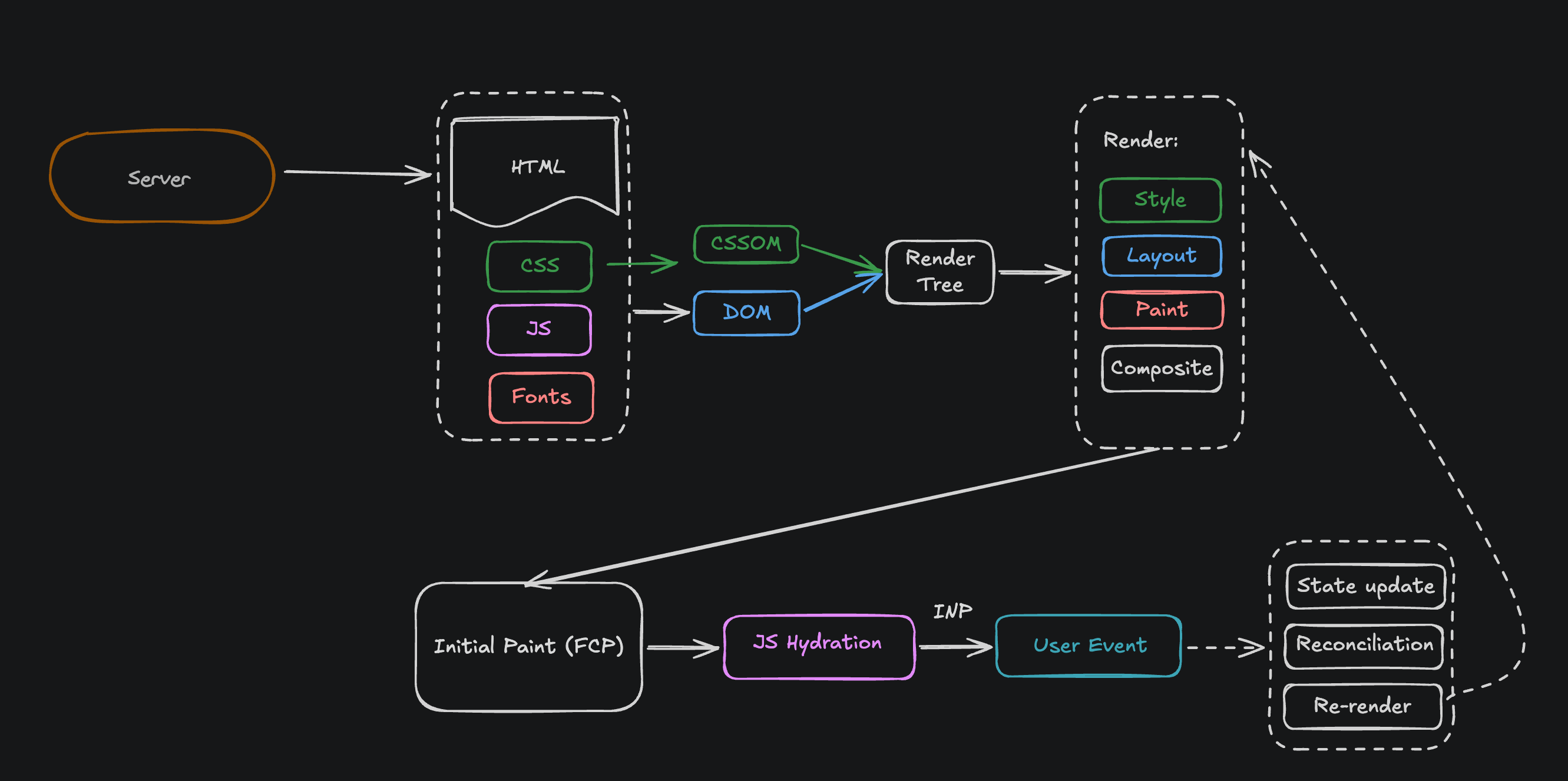 You open a URL. The screen is white. Then content shows up. Then buttons start working.
Those are three different moments. This is what happens between them.
```
Server ──► HTML, CSS, JS, Fonts
│
▼
DOM + CSSOM ──► Render Tree
│
▼
Style ► Layout ► Paint ► Composite
│
▼
You SEE the page (FCP)
│
▼
Hydration (JS runs)
│
▼
You can CLICK it (INP)
```
## Step 1: Download
The server sends four things.
| File | What it is | Does it block the screen? |
| - | - | - |
| HTML | The content | No — it streams in |
| CSS | The styling | **Yes** |
| JS | The behavior | **Yes**, unless you add `defer` |
| Fonts | The text shape | Text only |
## Step 2: Build two trees
The browser reads HTML and builds the **DOM** (a tree of elements).
The browser reads CSS and builds the **CSSOM** (a tree of styles).
Then it merges them into the **Render Tree** — only the things that will actually be drawn.
**Important:** the browser will not draw anything until *both* trees are done.
CSS is the problem here. It cannot be used half-finished. One line at the bottom of your last CSS file can change everything above it, so the browser waits for all of it.
That is why your page is white.
## Step 3: Draw it
Four steps, in order:
1. **Style** — figure out which CSS rule wins for each element
2. **Layout** — figure out where each box goes and how big it is
3. **Paint** — fill in the pixels
4. **Composite** — put the layers together on screen
The rule to remember:
> Change something, and you pay for that step **and every step after it**.
```css theme={null}
.a { width: 200px; } /* Layout + Paint + Composite = slow */
.b { background: red; } /* Paint + Composite = ok */
.c { transform: translateX(200px); } /* Composite only = fast */
```
So: animate with `transform` and `opacity`. Never animate `left`, `top`, `width`, or `margin`.
## Step 4: You see the page (FCP)
**FCP = First Contentful Paint.** The first moment you see real content.
But the page only *looks* finished. Nothing works yet.
## Step 5: Hydration
The HTML on screen is dead text. JavaScript has to run and attach click handlers to it. That is **hydration**.
This is the dangerous gap:
* The user sees a normal-looking page
* The user clicks a button
* Nothing happens
* There is no loading spinner, no clue anything is missing
More JavaScript = longer gap. The fix is always the same: **ship less JavaScript.**
In Next.js, a Server Component ships zero JS, so it never needs hydration:
```tsx theme={null}
{/* server — no JS sent */}
{/* 'use client' — needs hydration */}
```
## Step 6: You can click it (INP)
**INP = Interaction to Next Paint.** How long from a click until the screen updates.
A click goes right back through Step 3 — style, layout, paint, composite. Same pipeline.
Under 200ms feels instant. Over that feels broken.
## Cheat sheet
| Metric | What it measures | Target |
| - | - | - |
| TTFB | Server speed | \< 800ms |
| FCP | You see something | \< 1.8s |
| LCP | You see the big thing (hero image) | \< 2.5s |
| CLS | Stuff jumping around | \< 0.1 |
| INP | Click feels fast | \< 200ms |
And what to fix:
* **Slow TTFB** → your server. Front-end code cannot help.
* **Slow FCP** → too much CSS/JS blocking in ``.
* **Slow LCP** → your hero image is late. Preload it.
* **Bad CLS** → images with no `width`/`height`.
* **Bad INP** → too much JavaScript.
This documentation is built and hosted on [Mintlify](https://mintlify.com), a developer documentation platform.
You open a URL. The screen is white. Then content shows up. Then buttons start working.
Those are three different moments. This is what happens between them.
```
Server ──► HTML, CSS, JS, Fonts
│
▼
DOM + CSSOM ──► Render Tree
│
▼
Style ► Layout ► Paint ► Composite
│
▼
You SEE the page (FCP)
│
▼
Hydration (JS runs)
│
▼
You can CLICK it (INP)
```
## Step 1: Download
The server sends four things.
| File | What it is | Does it block the screen? |
| - | - | - |
| HTML | The content | No — it streams in |
| CSS | The styling | **Yes** |
| JS | The behavior | **Yes**, unless you add `defer` |
| Fonts | The text shape | Text only |
## Step 2: Build two trees
The browser reads HTML and builds the **DOM** (a tree of elements).
The browser reads CSS and builds the **CSSOM** (a tree of styles).
Then it merges them into the **Render Tree** — only the things that will actually be drawn.
**Important:** the browser will not draw anything until *both* trees are done.
CSS is the problem here. It cannot be used half-finished. One line at the bottom of your last CSS file can change everything above it, so the browser waits for all of it.
That is why your page is white.
## Step 3: Draw it
Four steps, in order:
1. **Style** — figure out which CSS rule wins for each element
2. **Layout** — figure out where each box goes and how big it is
3. **Paint** — fill in the pixels
4. **Composite** — put the layers together on screen
The rule to remember:
> Change something, and you pay for that step **and every step after it**.
```css theme={null}
.a { width: 200px; } /* Layout + Paint + Composite = slow */
.b { background: red; } /* Paint + Composite = ok */
.c { transform: translateX(200px); } /* Composite only = fast */
```
So: animate with `transform` and `opacity`. Never animate `left`, `top`, `width`, or `margin`.
## Step 4: You see the page (FCP)
**FCP = First Contentful Paint.** The first moment you see real content.
But the page only *looks* finished. Nothing works yet.
## Step 5: Hydration
The HTML on screen is dead text. JavaScript has to run and attach click handlers to it. That is **hydration**.
This is the dangerous gap:
* The user sees a normal-looking page
* The user clicks a button
* Nothing happens
* There is no loading spinner, no clue anything is missing
More JavaScript = longer gap. The fix is always the same: **ship less JavaScript.**
In Next.js, a Server Component ships zero JS, so it never needs hydration:
```tsx theme={null}
{/* server — no JS sent */}
{/* 'use client' — needs hydration */}
```
## Step 6: You can click it (INP)
**INP = Interaction to Next Paint.** How long from a click until the screen updates.
A click goes right back through Step 3 — style, layout, paint, composite. Same pipeline.
Under 200ms feels instant. Over that feels broken.
## Cheat sheet
| Metric | What it measures | Target |
| - | - | - |
| TTFB | Server speed | \< 800ms |
| FCP | You see something | \< 1.8s |
| LCP | You see the big thing (hero image) | \< 2.5s |
| CLS | Stuff jumping around | \< 0.1 |
| INP | Click feels fast | \< 200ms |
And what to fix:
* **Slow TTFB** → your server. Front-end code cannot help.
* **Slow FCP** → too much CSS/JS blocking in ``.
* **Slow LCP** → your hero image is late. Preload it.
* **Bad CLS** → images with no `width`/`height`.
* **Bad INP** → too much JavaScript.
This documentation is built and hosted on [Mintlify](https://mintlify.com), a developer documentation platform.